Screenshot & Annotation
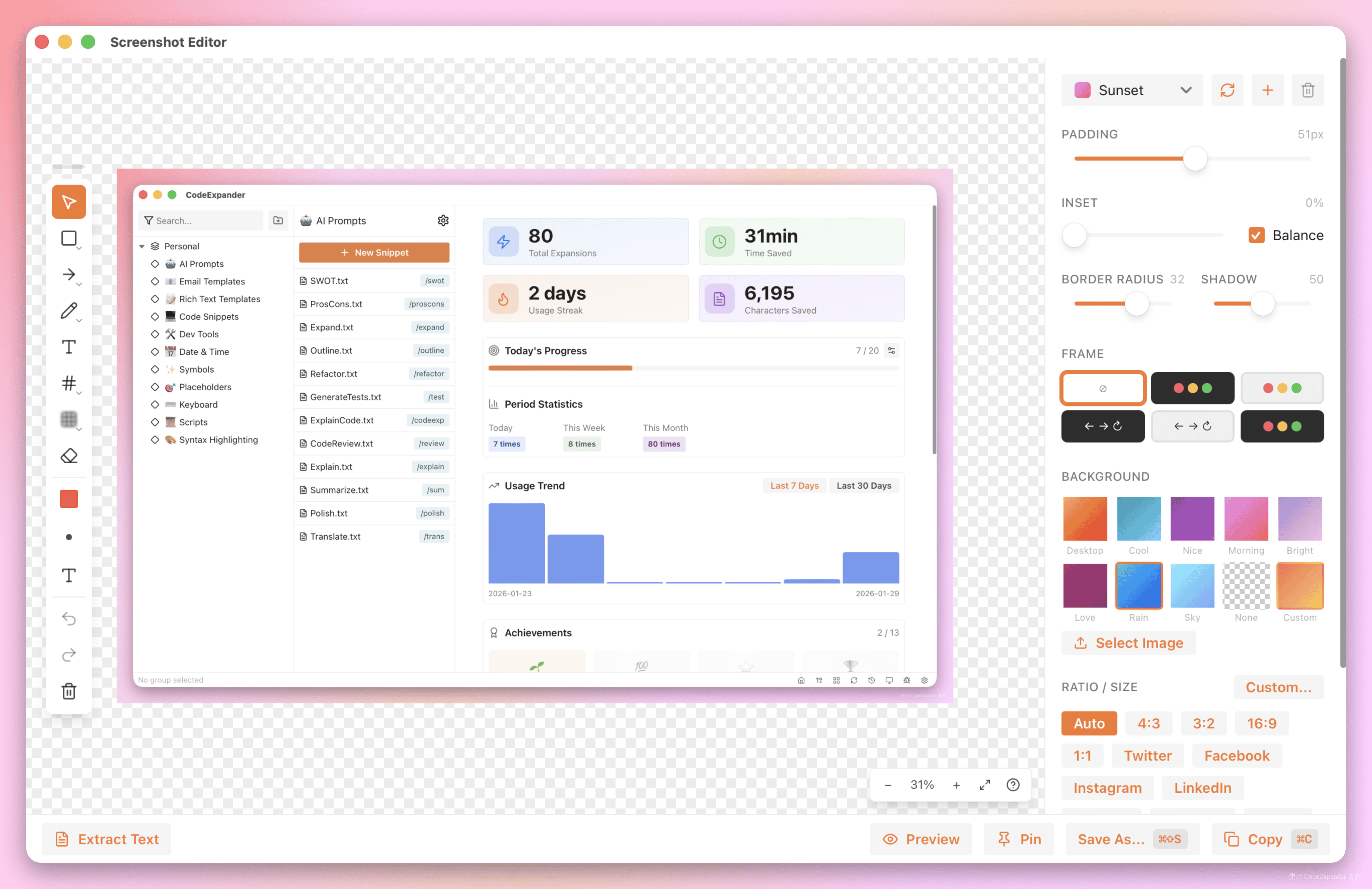
Screenshot & annotation in CodeExpander is an all-in-one capture and edit flow: region/window/fullscreen/scroll and Pin overlay, then straight into the editor to annotate (arrows, highlight, blur, text), style, OCR, copy or save. Trigger from tray or shortcut (e.g. Cmd+Shift+A). Multi-monitor: captures the display under the cursor.
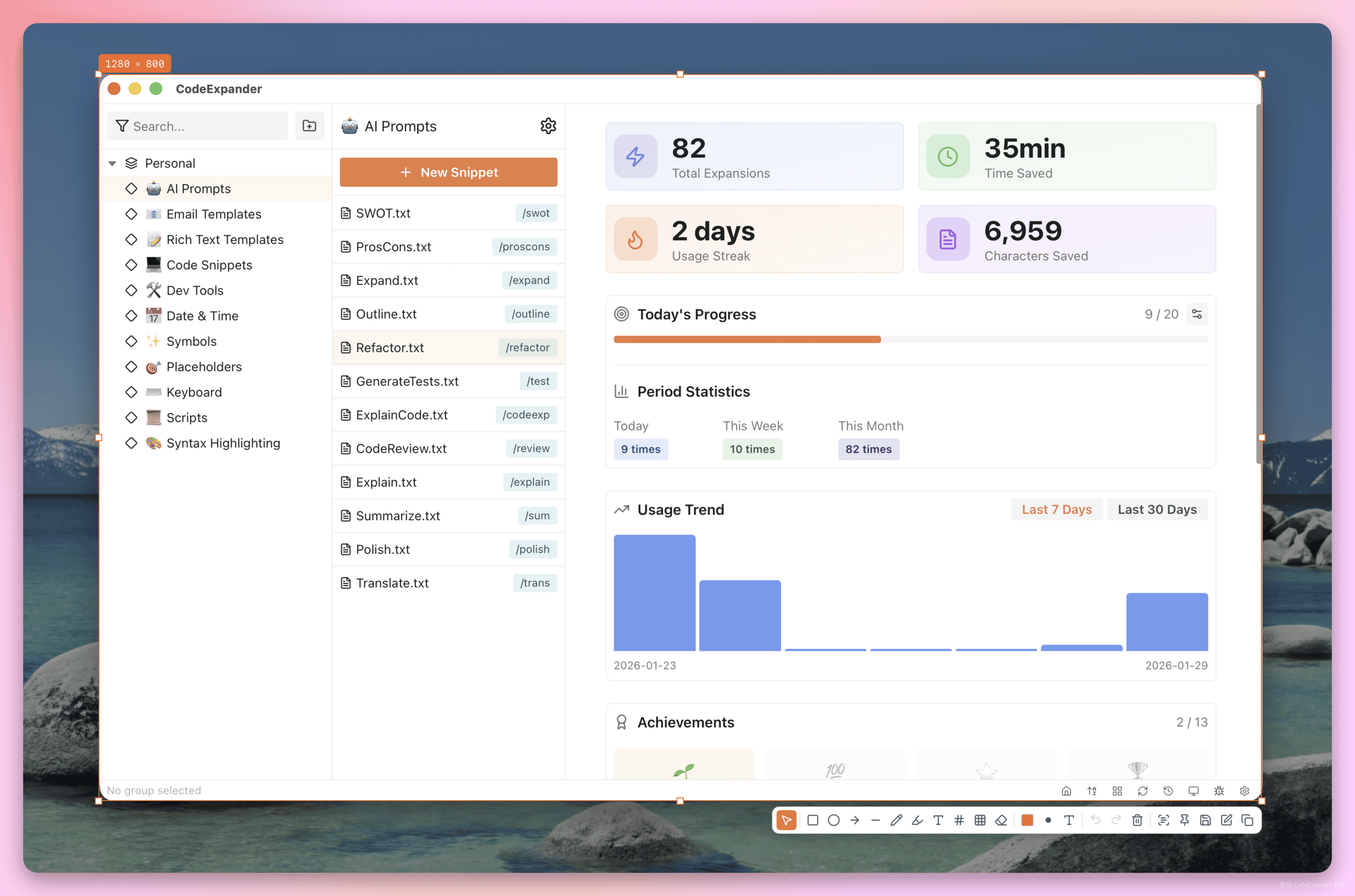
What capture modes are supported?
- Region — Drag to select; optional window-edge snap; then open in editor.
- Window — List of windows on screen; click to capture that window.
- Fullscreen — One key for the current display.
- Scroll — Scroll and stitch scrollable content (web, document) into one image (evolving).
- Pin overlay — Pin capture or selection on top for reference while writing or presenting.
Annotation & Styling
- Shapes: Rectangle, ellipse, arrow, line, brush, text, highlight, blur, mosaic, numbers, eraser; undo/redo, clear all.
- Background: Gradient/solid/pattern, corner radius, shadow, padding, device frame; save as preset for one-click reuse.
- Color picker: Pick from screen; HEX/RGB/HSL/OKLCH for design or UI work.
OCR
- Run OCR on capture or selection; copy or insert result; multi-language.
- Engines: macOS Vision, Windows system OCR; optional e.g. PaddleOCR (select in Settings).
Recording ᴾᴿᴼ
- GIF / MP4: Record selection; pause/resume; shortcut to stop and save. GIF can be edited (timeline, trim, add/remove frames, text/image watermark, effects), then export or save.
- All processing local; no upload to our servers.
Save & Output
- Copy — Enter or Copy in editor; screenshot/GIF to clipboard for paste in docs or chat.
- Save — Cmd/Ctrl+S or Save As; formats e.g. PNG (per current version).
- Habits — In Settings → Screenshot: filename template for manual save; quick save (after crop, save to folder); auto-save (on copy or Pin, write to folder).
Workflow
- Screenshot history — Recent captures viewable in editor or history for copy/edit.
- Multi-monitor — Capture the display under the cursor.