Screenshot & Annotation
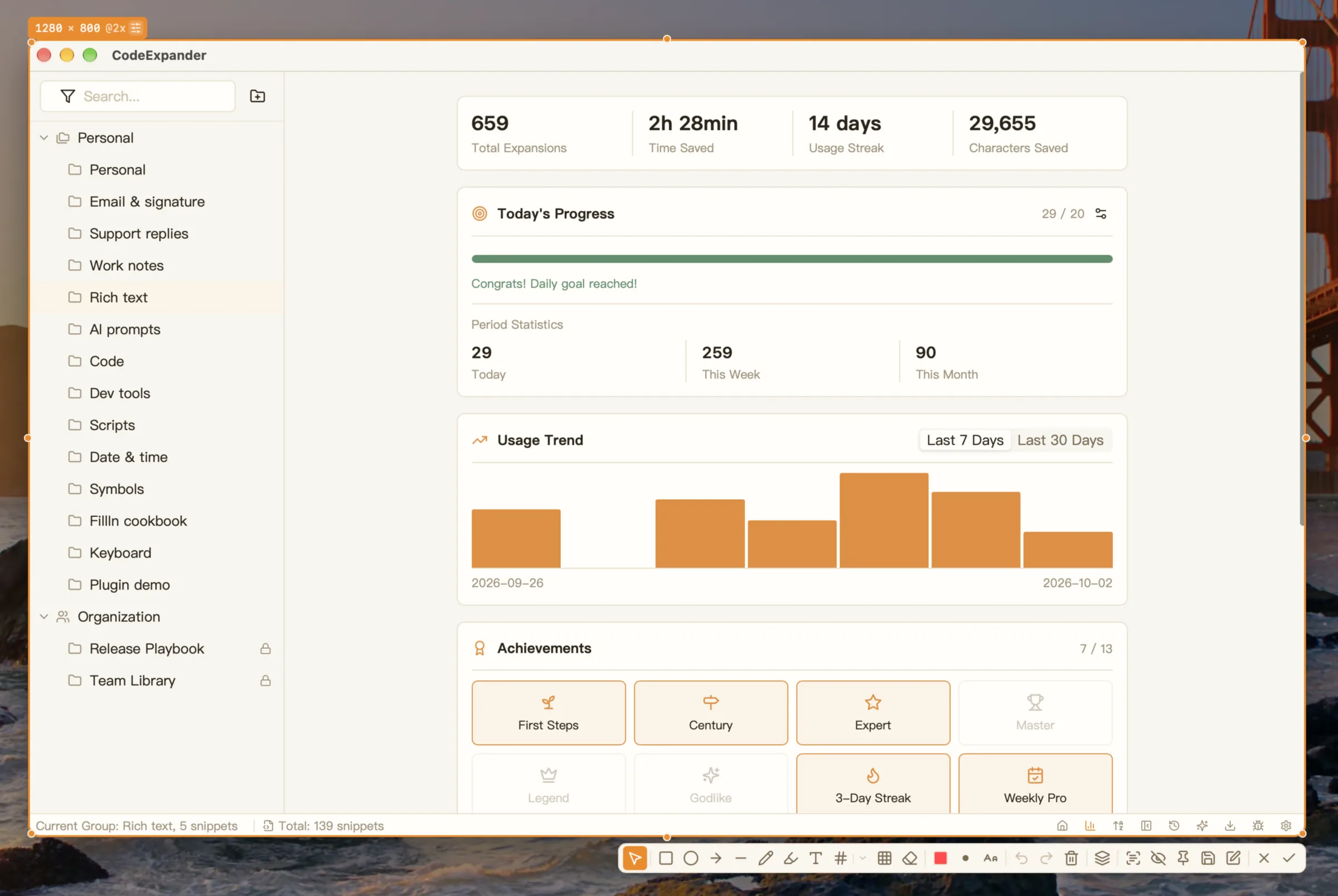
Screenshot & annotation in CodeExpander is an all-in-one capture and edit flow: region/window/fullscreen/scroll and Pin overlay, then straight into the editor to annotate (arrows, highlight, blur, text), style, OCR, copy or save. Trigger from tray or shortcut (e.g. Cmd+Shift+A). Multi-monitor: captures the display under the cursor.
Capture selection and annotation bar (same icons as the app). Arrow is active; the secret is mosaicked. OCR: 10/day Free. Scrolling capture: 3/day Free.
What capture modes are supported?
| Mode | Trigger | Description |
|---|---|---|
| Region | Shortcut / tray menu | Drag to select; auto-snap to window edges and UI elements; then open in editor |
| Window | Shortcut / tray menu | List of windows on screen; click to capture that window |
| Fullscreen | Shortcut / tray menu | One key for the display under the cursor |
| Scroll | Tray menu | Scroll and stitch; 3/day on Free, unlimited on Pro |
| Pin overlay | After capture / history | Pin capture on top with proportional scaling for reference while writing |
| GIF recording | Tray / hotkey | Free: 15s max + watermark; Pro unlimited, no watermark. See GIF |
Multi-monitor: Captures the display under the cursor automatically.
Shortcut configuration (Settings → Screenshot):
| Feature | macOS Default | Windows Default |
|---|---|---|
| Region capture | ⌘+⇧+A | Ctrl+Shift+A |
| Stop GIF recording | ⌃+⇧+G | Ctrl+Shift+G |
You can also assign independent shortcuts for fullscreen, window, scroll, and delayed capture.
Annotation & Styling
Annotation Tools
| Tool | Description | Configurable Properties |
|---|---|---|
| Select | Move and adjust existing annotations | — |
| Rectangle | Rectangular selection | Color, stroke width (1-20) |
| Ellipse | Elliptical selection | Color, stroke width |
| Arrow | Directional arrow | Color, stroke width |
| Line | Straight line segment | Color, stroke width |
| Pen | Freehand drawing | Color, stroke width |
| Highlight | Highlighter effect | Color, stroke width |
| Text | Text annotation | Color, font size (12-96) |
| Number | Numbered callout badges (1, 2, 3…) | Color |
| Blur | Blur sensitive information | Intensity |
| Mosaic | Pixelate for censorship | Intensity |
| Eraser | Erase annotations | — |
Editing operations: Undo (Cmd/Ctrl+Z), Redo (Cmd/Ctrl+Shift+Z), Clear all.
Background Styling
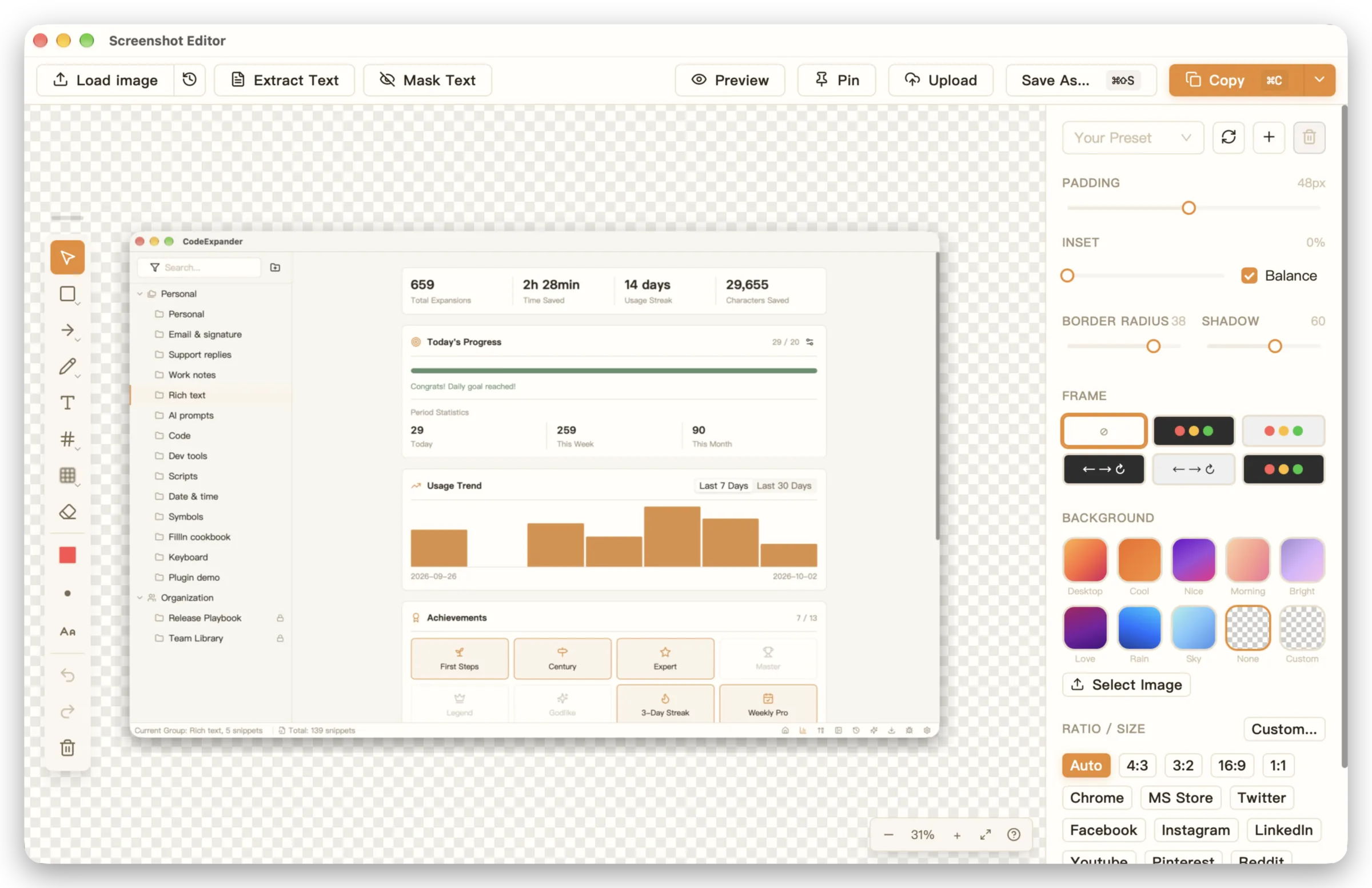
- Background type: Gradient presets / solid color / pattern
- Corner radius: Adjust screenshot corner radius
- Shadow: Add shadow effect
- Padding: Add margins around the image
- Device frames: macOS dark/light, browser dark/light, terminal presets
- Watermark: Text or image watermark with position settings
- Presets: Save current style combination for one-click reuse next time
Color Picker
Invoke during capture with shortcut; supports:
- Color formats:
HEX,RGB,HSL,OKLCH - Real-time screen pixel color preview
- Copy color value to clipboard
OCR
You need an invoice number from a photo. Capture it, run OCR, paste the text into a sheet. Recognition stays on this computer.
OCR result dialog: editable text. Close / Copy text / Exit capture. Runs on this machine. Free: 10/day.
- 10/day on Free, unlimited on Pro. The count is stored on this machine.
- Settings → Capture → OCR: pick an engine (auto is fine) and how results appear (dialog / toast and copy / pin).
- Number-annotation trials are a separate daily cap.
Typical scenarios: foreign UI text, invoices/contracts, code screenshots to text.
GIF & export
A button does nothing after a click. Start GIF recording from the tray or a hotkey, draw a region, stop, and send the file. Default stop hotkey: Ctrl+Shift+G. Region, cursor, and frame rate live under Settings → Capture.
GIF selection: icon bar for FPS / cursor / click rings. Recording shows time and frames. Free: 15s + watermark; Pro unlimited, no watermark.
| Free | Pro | |
|---|---|---|
| Length | 15 seconds max | Unlimited |
| Watermark | Icon on the file | None |
| Screenshot watermark switch | Locked on | Can turn off |
Record stays visible. Free recordings stop at the cap. After you stop, the editor (the capture one, not the snippet editor) trims the timeline. Export GIF, APNG, or MP4 (MP4 needs ffmpeg on this computer). All of it stays on this machine.
Typical scenarios: tutorial GIFs, bug repros, a quick demo in chat.
Save & Output
- Copy — Enter or Copy in editor; screenshot/GIF to clipboard for paste in docs or chat
- Save —
Cmd/Ctrl+Sor Save As; formats: PNG, JPG, WebP - Quick save (Settings): Save directly to configured folder without dialog
- Auto-save (Settings): Automatically write to folder when copying to clipboard or pinning
Filename Template
Supports time placeholders, e.g.:
APSDAL_${yyyy-MM-dd_HH-mm-ss}.pngCommon placeholders:
${yyyy}— Year (4 digits)${MM}— Month (2 digits)${dd}— Day (2 digits)${HH}— Hour (24h)${mm}— Minute${ss}— Second
Screenshot Settings
Configure in Settings → Screenshot:
| Setting | Description |
|---|---|
| Shortcuts | Region/fullscreen/window/scroll/GIF stop shortcuts |
| Image quality | Save quality, -1 for auto (PNG lossless) |
| Default format | PNG / JPG / WebP |
| Region capture | Auto-detect window, show anchors, mask color |
| Color picker | Default color format (HEX/RGB/HSL/OKLCH) |
| Pin overlay | Always on top, show toolbar on hover |
| OCR | Engine selection, model version, result display mode |
| Save | Filename template, quick save directory, auto-save directory |
Workflow
- Screenshot history — Recent captures viewable in editor or history for copy/edit.
- Multi-monitor — Capture the display under the cursor.
Typical Workflows
- Tutorial screenshots: Region capture → arrow/number annotation → background styling (rounded corners + shadow) → copy to document
- Bug report: Window capture → mosaic/blur sensitive info → copy to colleague or issue tracker
- Code review: Region capture → numbered callouts for issues → export or copy
- Design color picking: Region capture → color picker extracts value → copy HEX to design tool